
In the crowded world of music streaming, you have about three seconds to grab a new listener's attention before they skip to the next track. For years, independent artists rely solely on their album cover to do that work.
Then came Spotify Canvas.
This simple feature has transformed the way artists engage with fans, turning a passive listening session into an immersive visual experience. If you aren't using Canvas yet, you are leaving engagement on the table. Here is everything you need to know to get started.
What is Spotify Canvas?
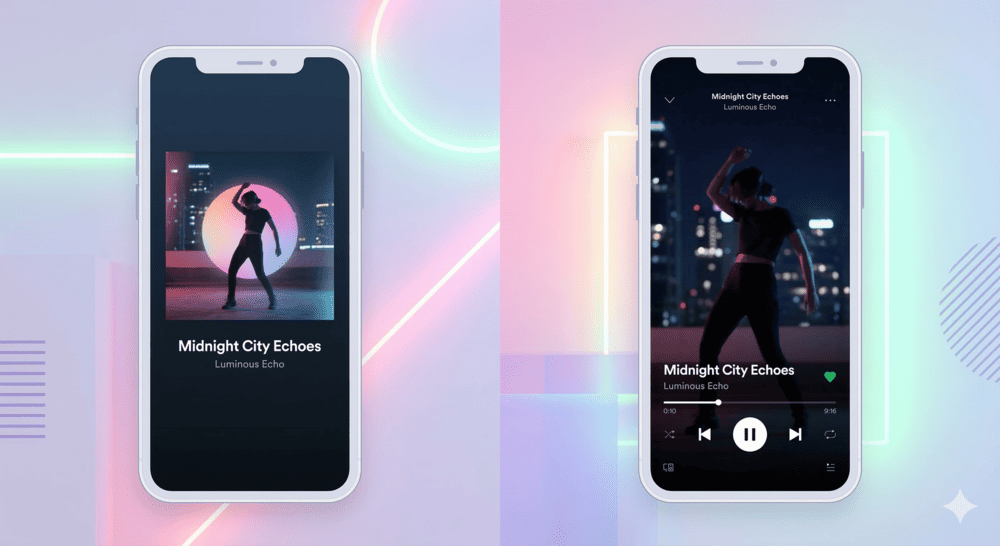
Spotify Canvas is a 3- to 8-second, looping, full-screen vertical visual that plays in the background of the Spotify mobile app when a user streams your song.
It replaces the static album artwork in the "Now Playing" view. It is important to know what it is not: it is not a music video, it has no sound, and it doesn't need to sync with the lyrics. It is a visual loop designed to set a vibe.
Why Should You Care?
The numbers
It might seem small, but those eight seconds make a massive difference. When a track has a Canvas, listeners are far more likely to engage with the artist.
According to Spotify data, tracks with a Canvas see an average of:
- 145% increase in track shares
- 20% increase in playlist adds
- 5% increase in streams
- 9% increase in visits to your artist profile page
In short: A compelling Canvas turns listeners into fans, and fans into amplifiers of your music.
The Technical Specs: Get It Right
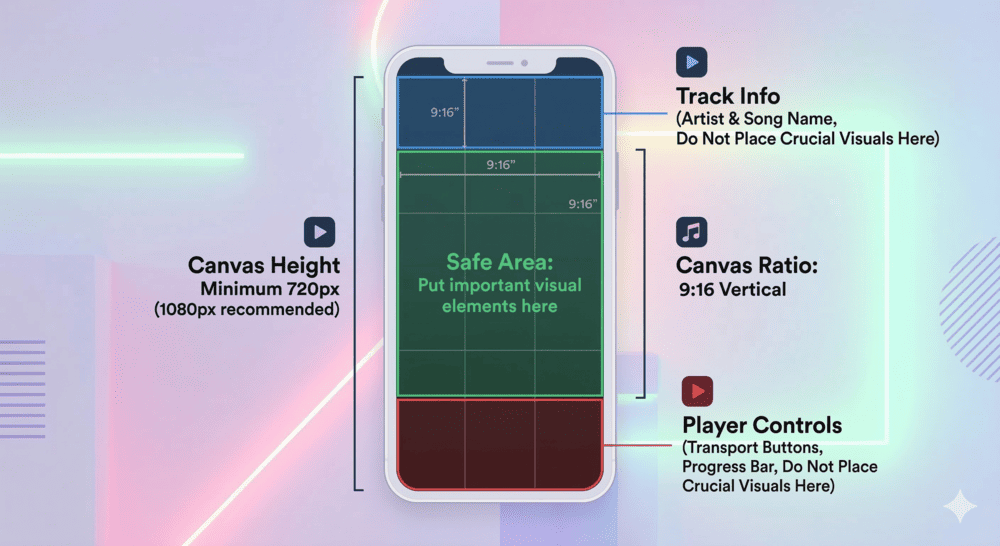
Spotify will reject visuals that don’t meet their strict technical requirements. Before you create your loop, make sure your file adheres to these settings:
- Ratio: 9:16 (Vertical)
- Height: At least 720px (1080px is recommended)
- Length: 3 to 8 seconds
- File Format: MP4 or JPG only (MP4 recommended for video loops)
Best Practices for a Great Canvas
Just because you can upload anything, doesn't mean you should. Follow these tips for maximum impact:
1. No Talking, Singing, or Rapping
The loop is too short to sync with the song's lyrics. Watching a mouth move out of sync with the audio is jarring for the listener. Focus on atmosphere, abstract visuals, or kinetic motion instead.
2. Understand Your Loop Types
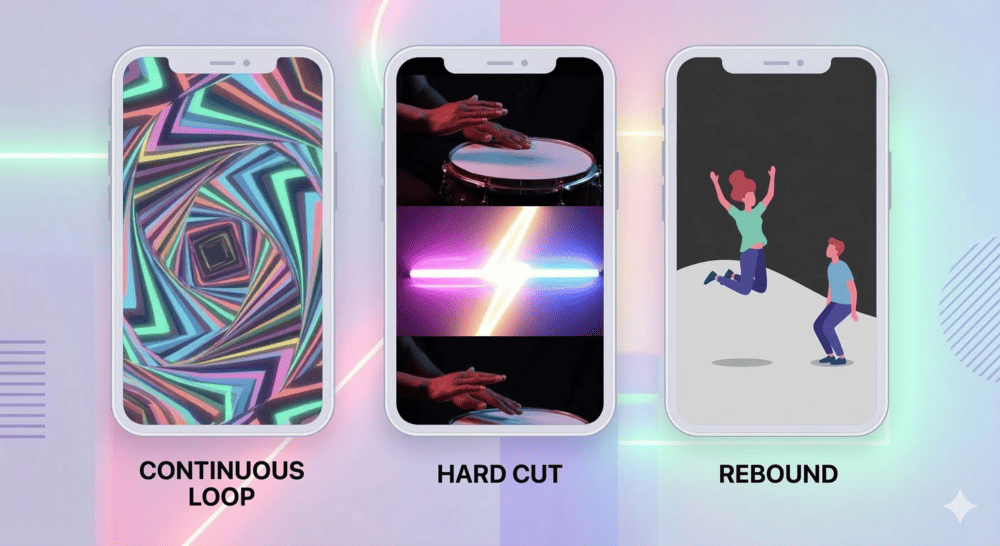
How you edit your 8 seconds determines the energy.
- Continuous Loop: A seamless "gif" style loop where the beginning and end meet perfectly.
- Hard Cut: A clear, rhythmic cut between the end and the start—great for high-energy tracks.
- Rebound: The clip plays forward, then plays in reverse, then forward again. This is the easiest way to make a flawless loop.
3. Exclude Text (Usually)
Your artist name, track title, and album are already visible on the screen in the Spotify player overlay. Including them again within the visual makes the screen look cluttered. Let the imagery tell the story.
4. Tell a Tiny Story
Use visuals from your official music video, behind-the-scenes footage, or 3D render animations that relate to the emotional theme of your song. Even 8 seconds can convey a narrative or a distinct mood.
How to Upload Your Canvas
You do not need a label to upload a Canvas. You just need access to Spotify for Artists.
- Log in to Spotify for Artists (desktop or mobile app).
- Go to the Music tab.
- Select the track you want to update.
- Click Add Canvas (or "Create Canvas" on mobile).
- Upload your MP4 file.
Your Canvas will usually appear within an hour of uploading.
Final Thoughts
In the attention economy, Spotify Canvas is one of the most powerful free tools available to independent artists. It’s an easy way to professionalize your profile, share your brand identity, and drastically increase your engagement metrics.
Don’t just let them listen—give them something to see.

Member discussion: